Company setup
The people who can sign in, and the role each person has. A role is a bundle of permissions — who may create a file, who may approve, who may only look.
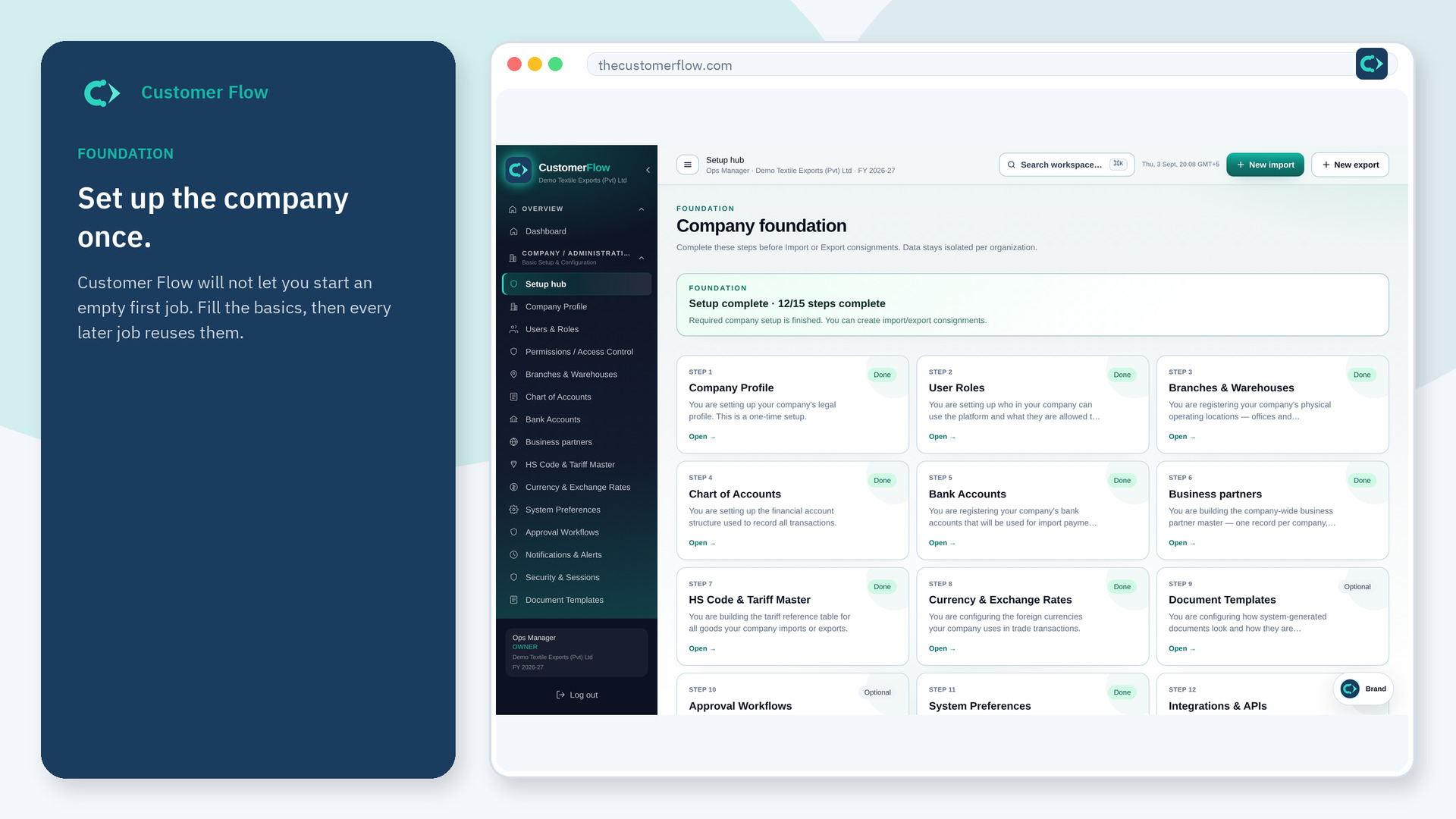
Where to find it: Left menu → Company / Administration → Users & Roles
Also in the menu as: Employee Management.
Step 1
Left menu → Company / Administration → Users & Roles. In the menu it may also say "Employee Management". If the name is missing, your role does not include it — ask an admin in Users & Roles.
Step 2
Invite a colleague with their work email. Pick a role that matches their job. They join this company — they do not open a second tenant unless you intend that.
Step 3
The person appears in the list as invited or active. They sign in with the invite email. You can change their role later.
Yes. Users & Roles is a signed-in workspace screen. This public page teaches the screen with a picture and a link to the feature video. It never shows another company’s data.
The left menu only shows screens your role may open. Ask a company admin to grant the matching permission, or to show you which role should own this step.
Yes. Users and roles are part of foundation setup. Invite the people who will touch the first live file.