Company setup
The fine print of who may read, write, approve, or see the audit log. Roles point here. Do not make everyone an owner by accident.
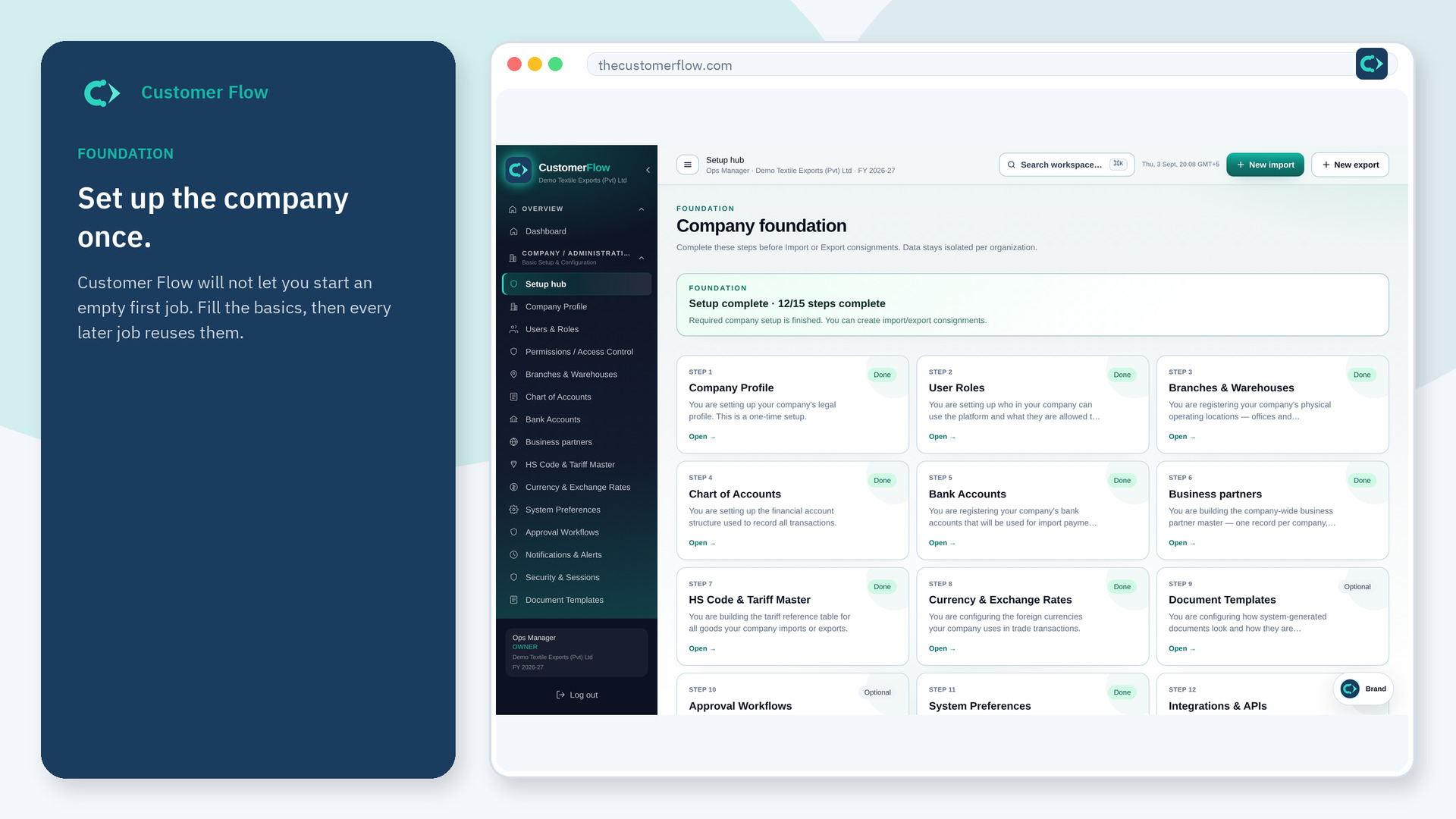
Where to find it: Left menu → Company / Administration → Permissions / Access Control
Step 1
Left menu → Company / Administration → Permissions / Access Control. If the name is missing, your role does not include it — ask an admin in Users & Roles.
Step 2
Open the role you care about. Tick only the screens that job needs. Save. Test by signing in as that person or asking them what they can see.
Step 3
The left menu for that role should match the ticks. If a screen is still hidden, a parent permission may be off.
Yes. Permissions / Access Control is a signed-in workspace screen. This public page teaches the screen with a picture and a link to the feature video. It never shows another company’s data.
The left menu only shows screens your role may open. Ask a company admin to grant the matching permission, or to show you which role should own this step.
Read-only for people who only look. Write for operators. Approve and audit for managers. Owner for the person who registered, until you add another.