Company setup
Company-wide defaults: numbering, date display, and other switches that should be the same for everyone.
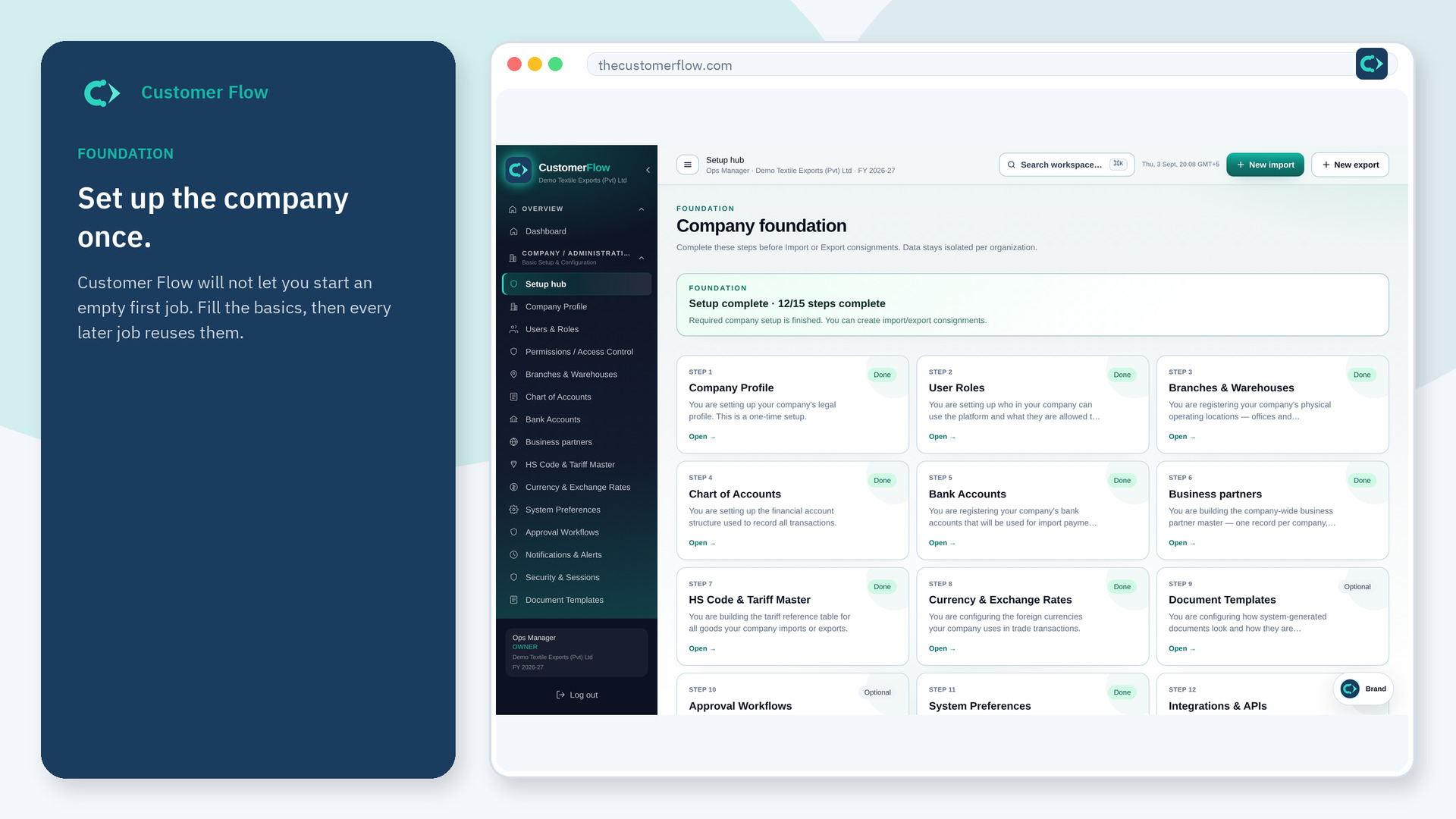
Where to find it: Left menu → Company / Administration → System Preferences
Step 1
Left menu → Company / Administration → System Preferences. If the name is missing, your role does not include it — ask an admin in Users & Roles.
Step 2
Read each switch once. Change only what your company already decided (number patterns, fiscal hints). Save.
Step 3
New files should pick up the numbering and defaults. If a number looks wrong, come back here before you create the next file.
Yes. System Preferences is a signed-in workspace screen. This public page teaches the screen with a picture and a link to the feature video. It never shows another company’s data.
The left menu only shows screens your role may open. Ask a company admin to grant the matching permission, or to show you which role should own this step.
No. Preferences are company-wide so auditors see one sequence, not one per person.