Company setup
Password rules, two-factor, and who is signed in. This is a required setup step so the first file is not wide open.
Where to find it: Left menu → Company / Administration → Security & Sessions
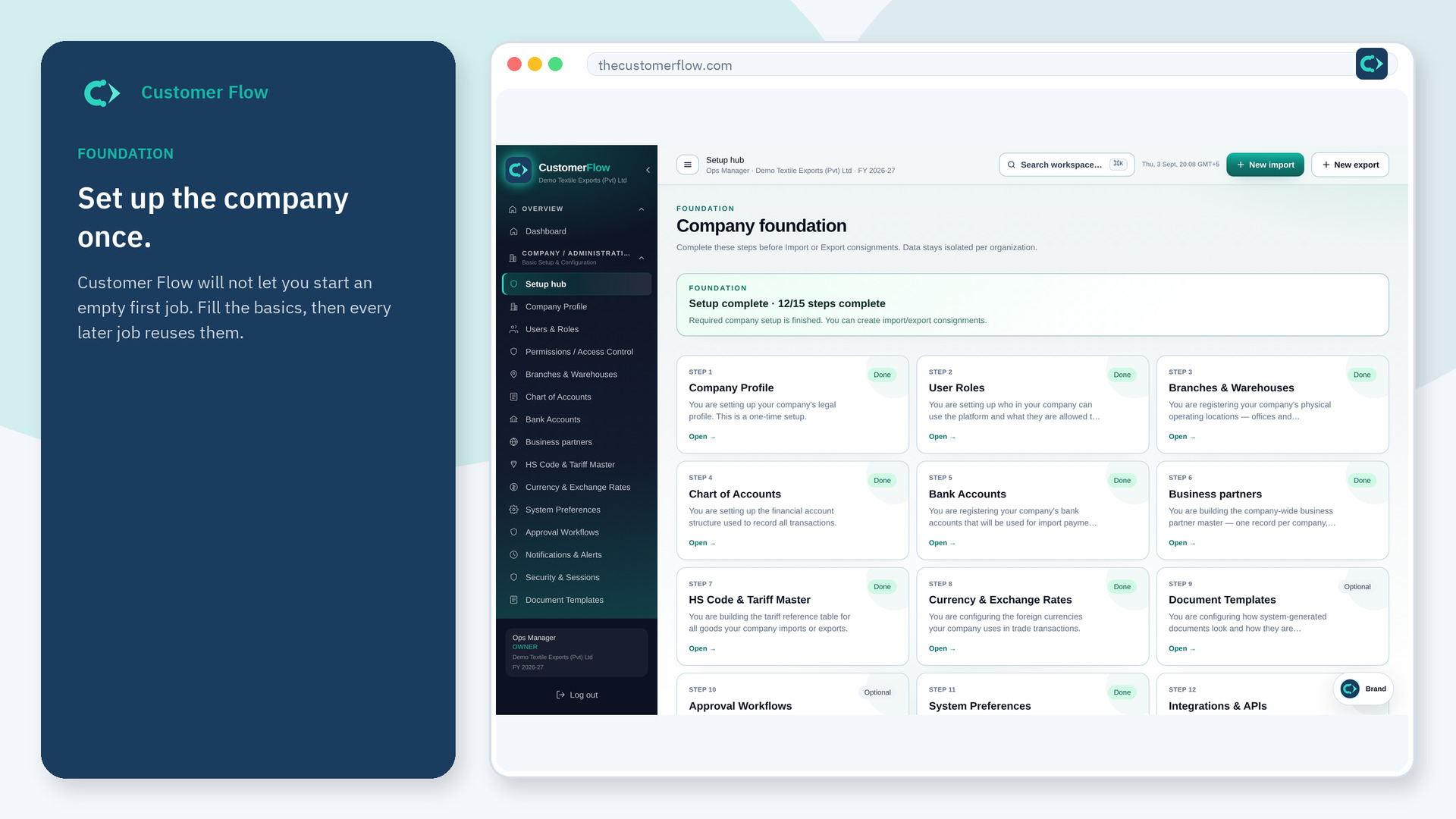
Step 1
Left menu → Company / Administration → Security & Sessions. If the name is missing, your role does not include it — ask an admin in Users & Roles.
Step 2
Turn on the controls your policy needs (2FA, session length). Review active sessions and sign out old devices. Save.
Step 3
The next sign-in should follow the new rules. Stolen-device sessions should disappear after you revoke them.
Yes. Security & Sessions is a signed-in workspace screen. This public page teaches the screen with a picture and a link to the feature video. It never shows another company’s data.
The left menu only shows screens your role may open. Ask a company admin to grant the matching permission, or to show you which role should own this step.
It is strongly recommended. The product can require it for the company. Ask the owner to switch it on before go-live.