Company setup
How the product tells people that a file needs them: in the app, and by email when you turn that on.
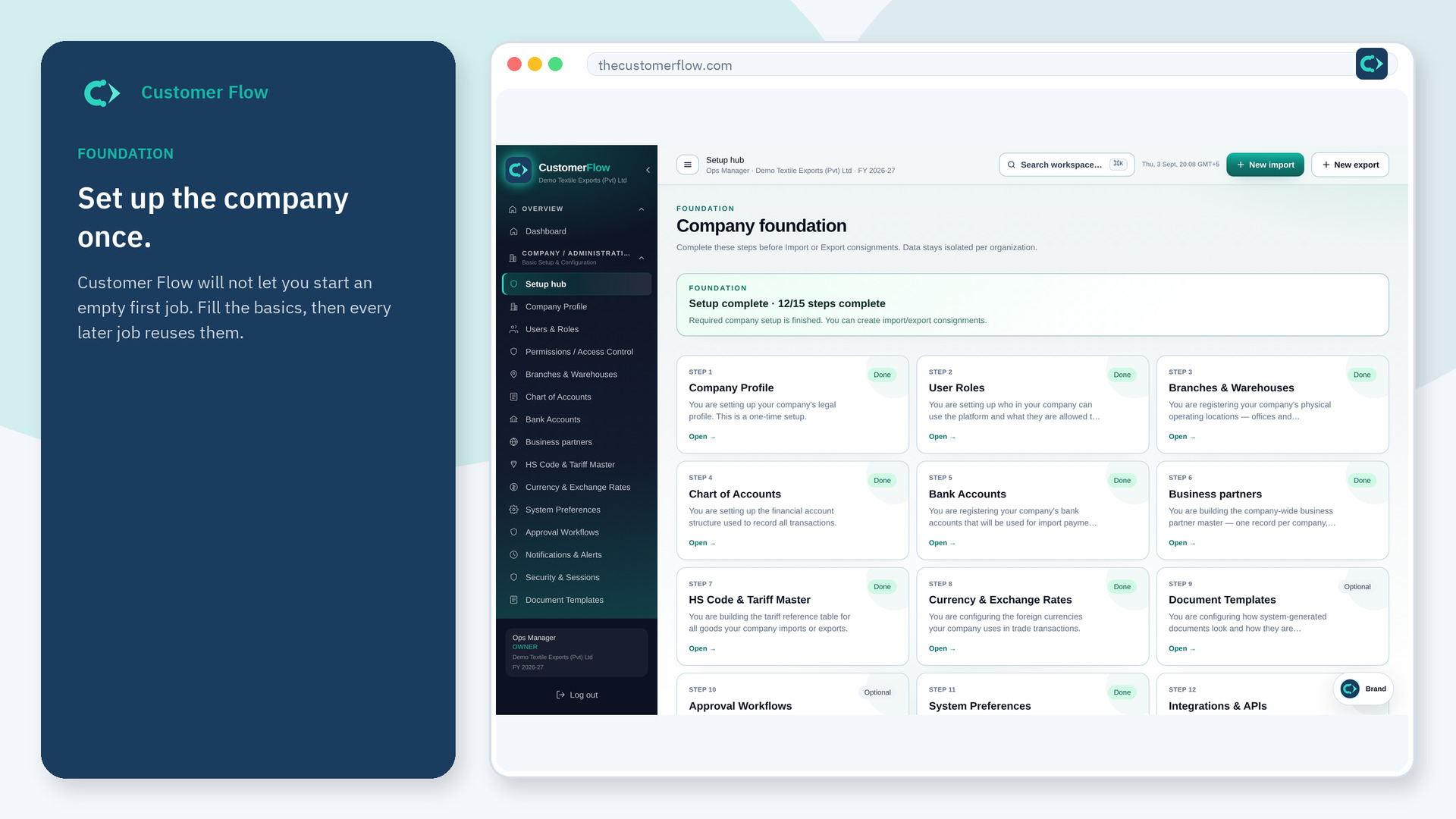
Where to find it: Left menu → Company / Administration → Notifications & Alerts
Step 1
Left menu → Company / Administration → Notifications & Alerts. If the name is missing, your role does not include it — ask an admin in Users & Roles.
Step 2
Turn on the events your team must not miss (approvals, arrivals, failed imports). Save. Do not enable everything on day one.
Step 3
Trigger a test event if the screen offers one, or create a dummy approval and confirm the right person is notified.
Yes. Notifications & Alerts is a signed-in workspace screen. This public page teaches the screen with a picture and a link to the feature video. It never shows another company’s data.
The left menu only shows screens your role may open. Ask a company admin to grant the matching permission, or to show you which role should own this step.
No. These alerts are for your signed-in team. Customer statements are a different Sales screen.