Company setup
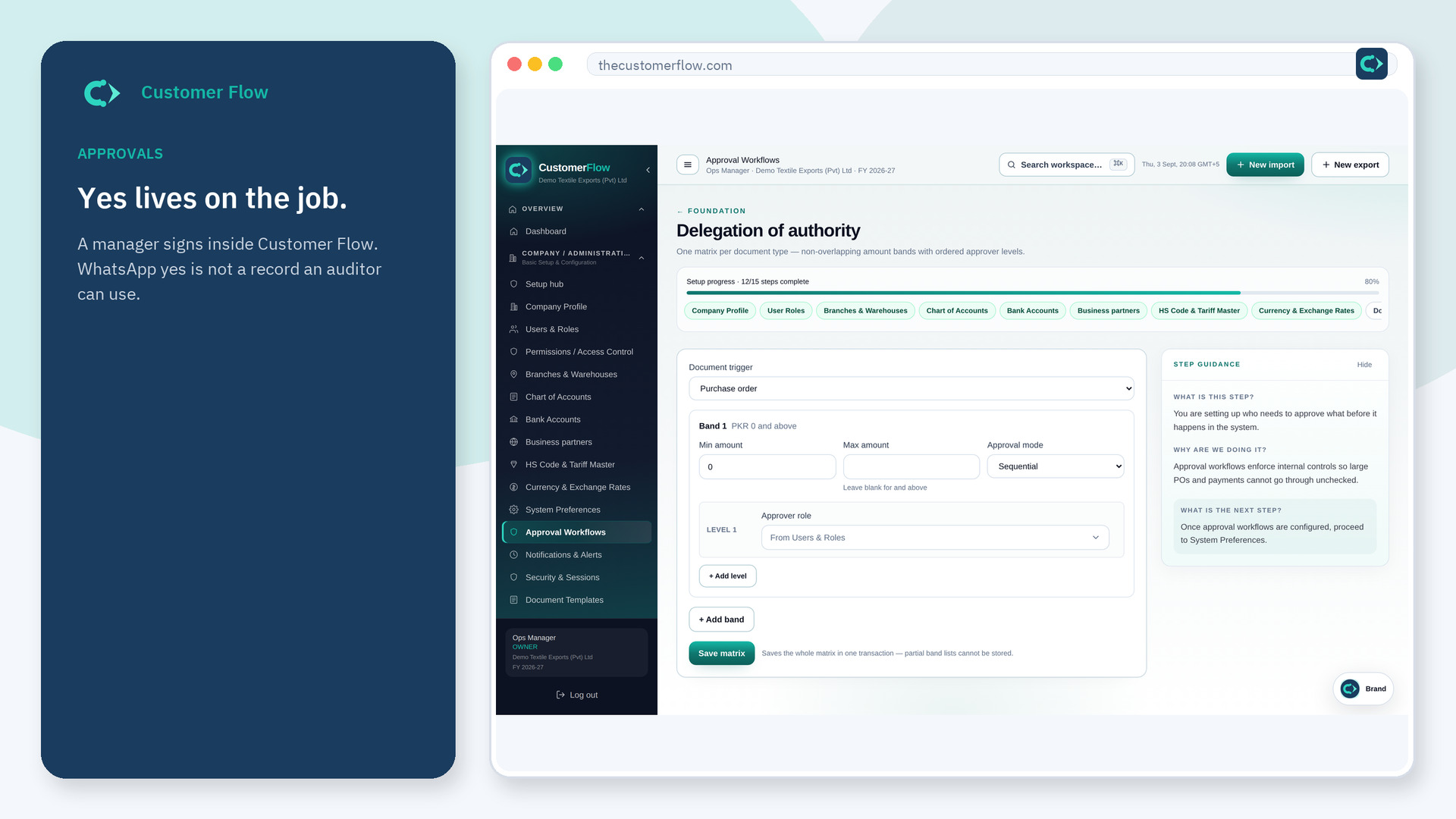
Rules for who must say yes before a purchase, payment, or status change moves. The decision lives on the file, not in a chat screenshot.
Where to find it: Left menu → Company / Administration → Approval Workflows
Step 1
Left menu → Company / Administration → Approval Workflows. If the name is missing, your role does not include it — ask an admin in Users & Roles.
Step 2
Create or open a workflow. Choose the document type, the amount or stage that triggers it, and who approves. Save. Keep it short.
Step 3
The next matching request should appear in the approver’s queue. The audit trail should show the decision.
Yes. Approval Workflows is a signed-in workspace screen. This public page teaches the screen with a picture and a link to the feature video. It never shows another company’s data.
The left menu only shows screens your role may open. Ask a company admin to grant the matching permission, or to show you which role should own this step.
The file will wait. Assign a role that can approve, or a named person, before you run the first live purchase.