HR & payroll
Open a role on a real position, collect candidates, and move applications until someone is hired.
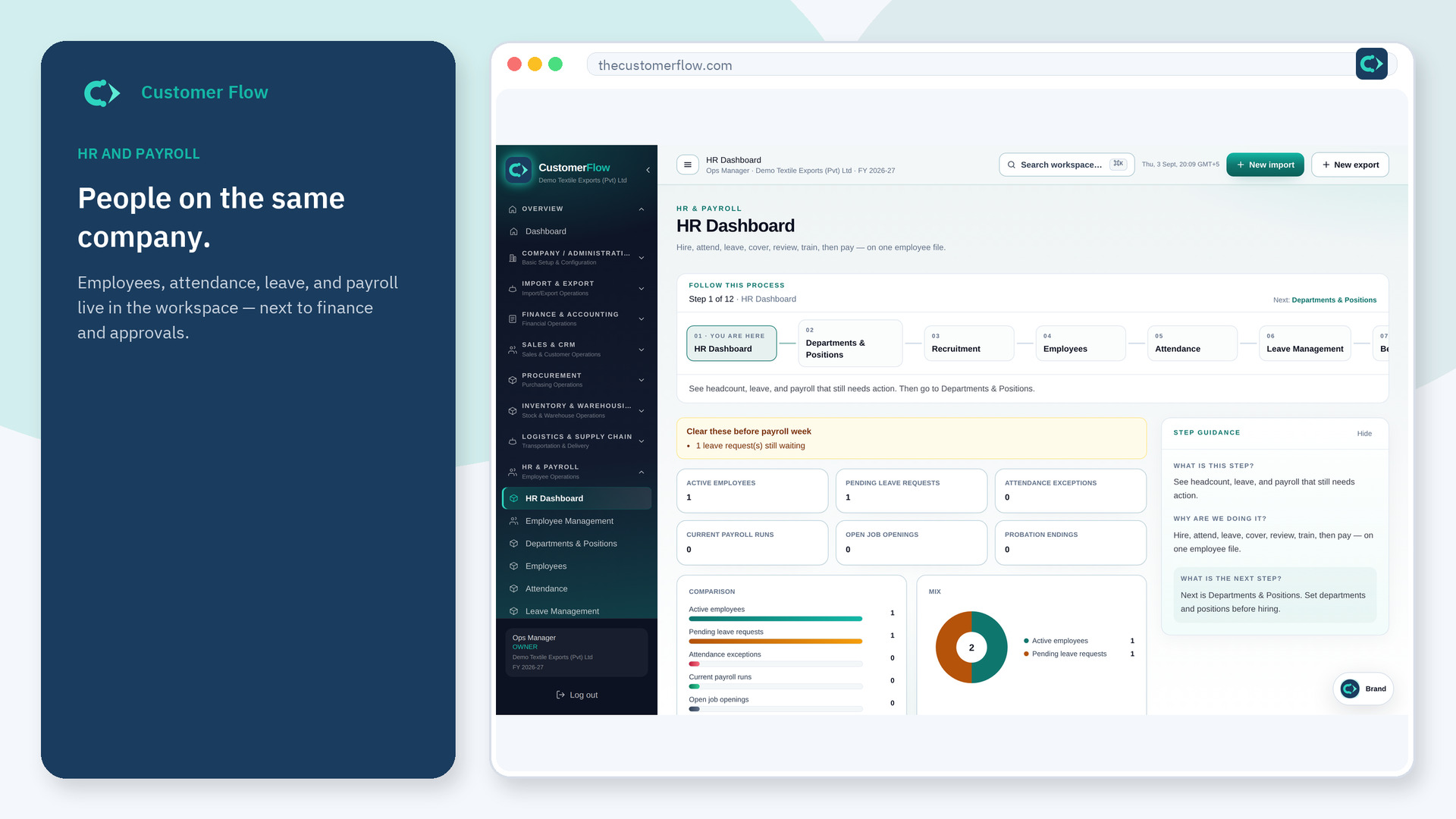
Where to find it: Left menu → HR & Payroll → Recruitment
Step 1
Left menu → HR & Payroll → Recruitment. If the name is missing, your role does not include it — ask an admin in Users & Roles.
Step 2
Open the role. Add the candidate. Log the application. Move the stage. Hired does not create payroll — add the employee record next.
Step 3
The opening should close when you hire. The dashboard open-roles count should drop. Create the employee before attendance.
Yes. Recruitment is a signed-in workspace screen. This public page teaches the screen with a picture and a link to the feature video. It never shows another company’s data.
The left menu only shows screens your role may open. Ask a company admin to grant the matching permission, or to show you which role should own this step.
No. Hiring closes the role. Payroll needs an employee record with a salary structure.