Procurement
A multi-line request to buy goods, services, raw materials, assets, or mixed needs. Do not issue a PO until this is approved.
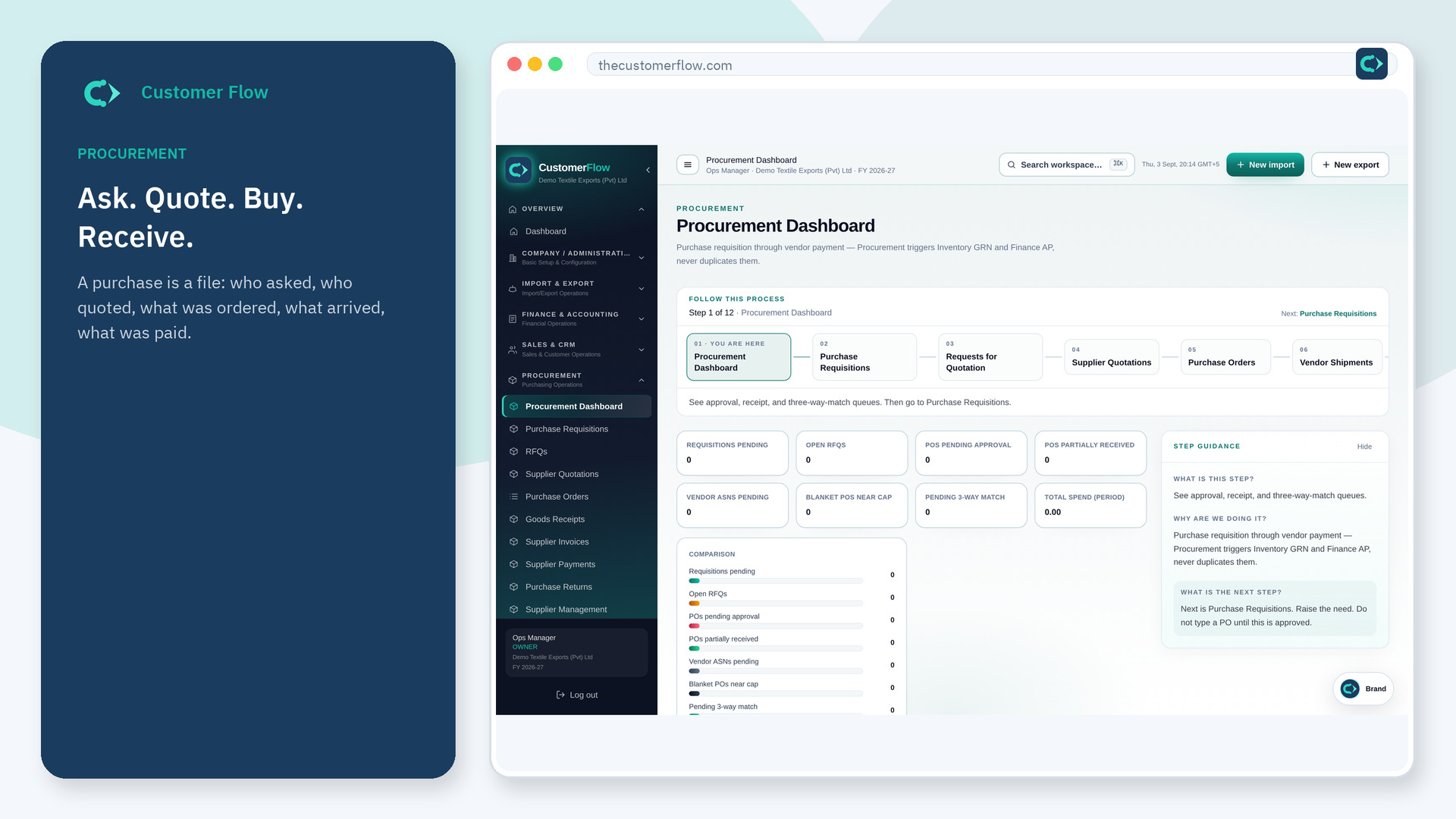
Where to find it: Left menu → Procurement → Purchase Requisitions
Step 1
Left menu → Procurement → Purchase Requisitions. If the name is missing, your role does not include it — ask an admin in Users & Roles.
Step 2
Capture type, lines, cost centre, and priority. Submit for approval. Default: approval auto-creates a draft RFQ; use Hold only when a buyer must intervene.
Step 3
Status should move to converted to RFQ (or approved if held). Audit trail names the approver; RFQs list shows the linked draft.
Yes. Purchase Requisitions is a signed-in workspace screen. This public page teaches the screen with a picture and a link to the feature video. It never shows another company’s data.
The left menu only shows screens your role may open. Ask a company admin to grant the matching permission, or to show you which role should own this step.
Only if your company set it that way. The default teaching is: need, approve, then PO.