Quality
How to use Calibration in Customer Flow
Gauges and test instruments with their calibration interval, certificates and next due date.
Where to find it: Left menu → Quality & Compliance → Calibration
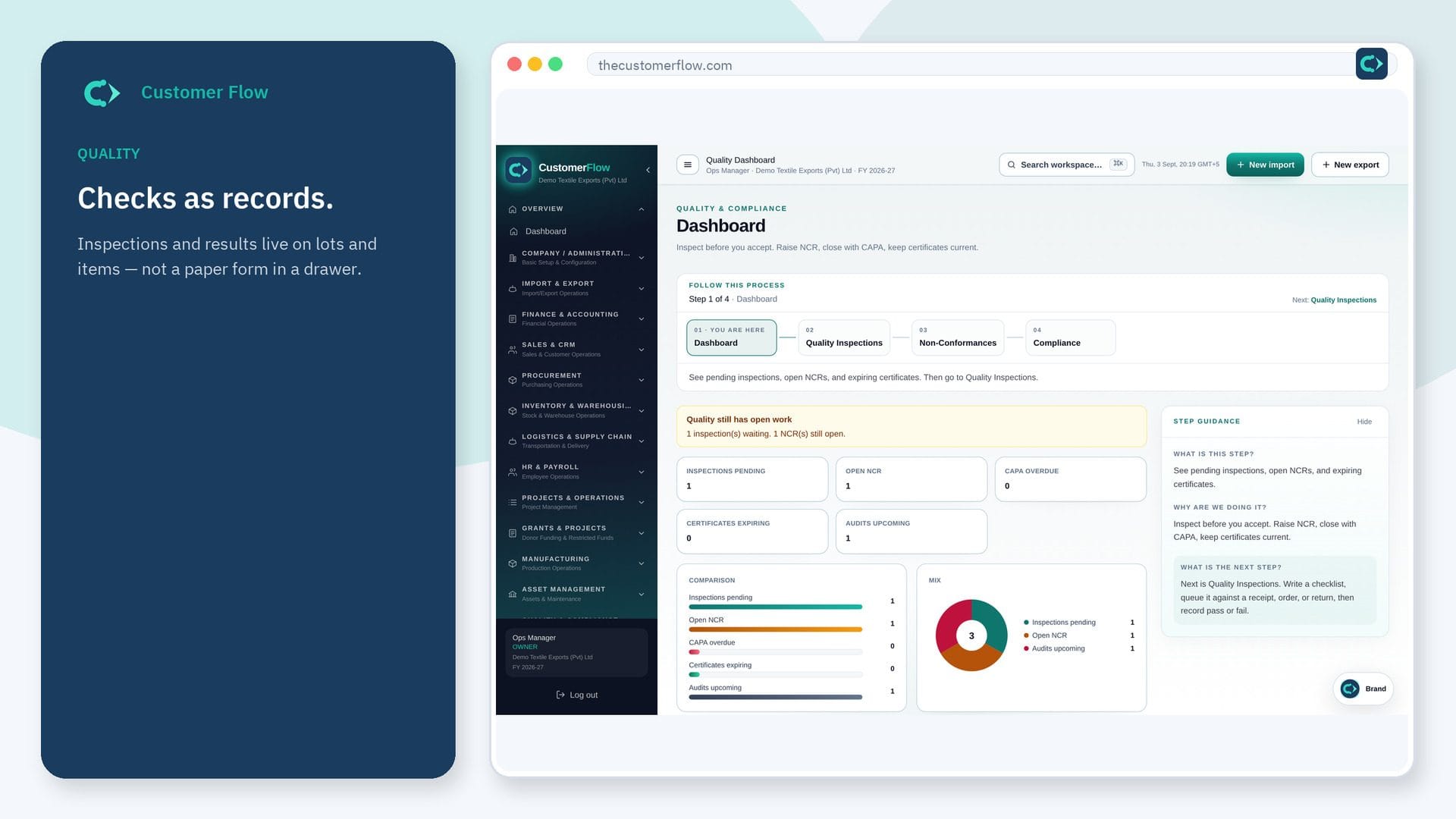
Every step
Step 1
Open the screen
Left menu → Quality & Compliance → Calibration. If the name is missing, your role does not include it — ask an admin in Users & Roles.
Step 2
Do the work
Register each instrument with its interval, then record every calibration: who did it, the certificate number and the result.
Step 3
Check it saved
Overdue and due-soon instruments are listed first. A failed calibration takes the instrument out of service and opens a major NCR to review recent measurements.
Questions people ask
Do I need to log in to use Calibration?
Yes. Calibration is a signed-in workspace screen. This public page teaches the screen with a picture and a link to the feature video. It never shows another company’s data.
I cannot see Calibration in the menu. Why?
The left menu only shows screens your role may open. Ask a company admin to grant the matching permission, or to show you which role should own this step.
How do I put a failed instrument back in service?
Repair or adjust it, then record a passing calibration. It returns to service with a new due date.