
Projects
How to use Sprints & backlog in Customer Flow
Plan a project's work in time-boxed sprints: estimate in story points, start one sprint at a time, and watch the burndown.
Where to find it: Left menu → Projects & Operations → Sprints & backlog
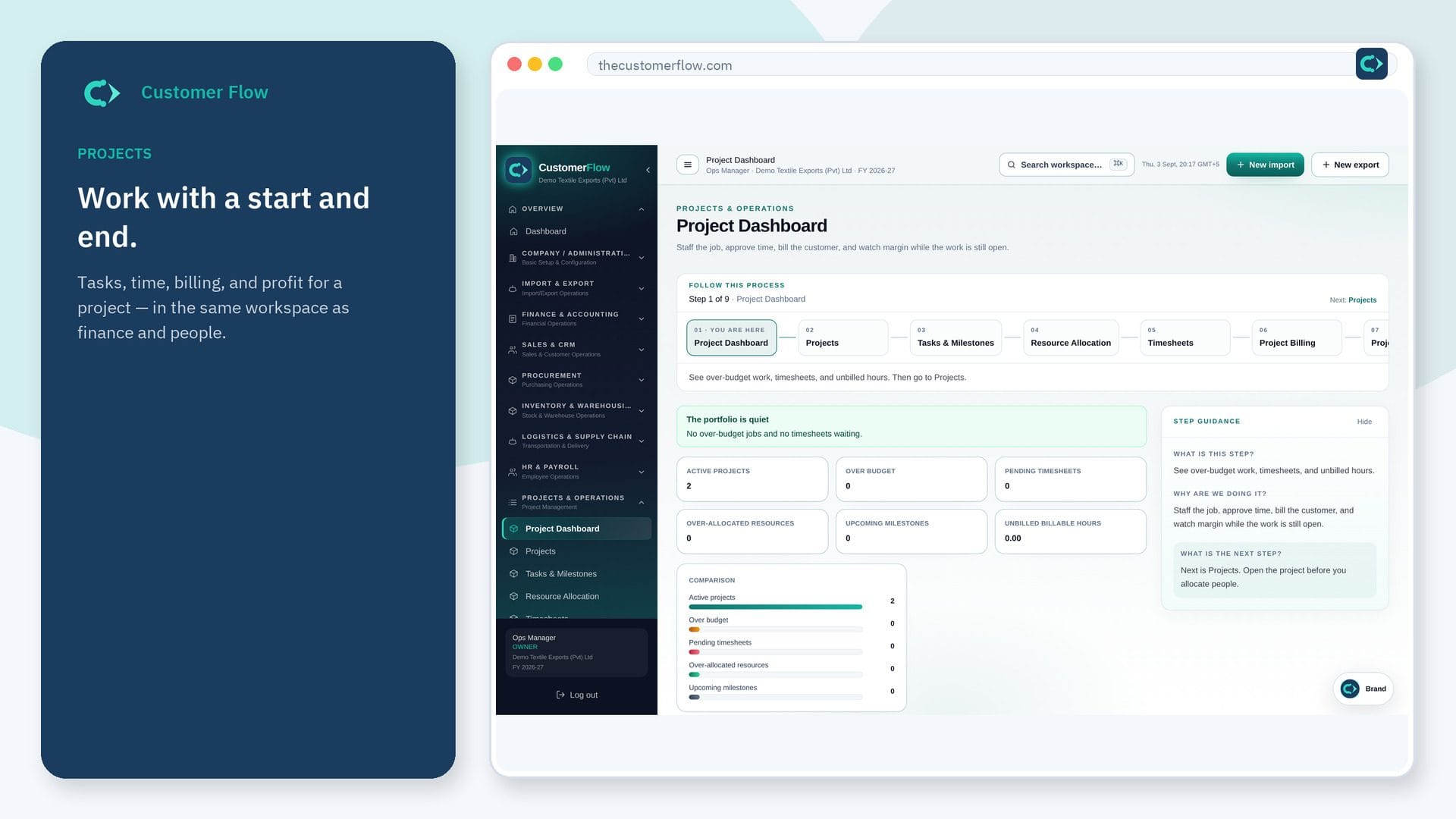
Every step
Step 1
Open the screen
Left menu → Projects & Operations → Sprints & backlog. If the name is missing, your role does not include it — ask an admin in Users & Roles.
Step 2
Do the work
Pick a project. Give backlog tasks story points, plan a sprint, select tasks and move them in, then start it. Close it at the end and carry unfinished work forward.
Step 3
Check it saved
The burndown should follow the ideal line. Closed sprints show points done against points committed — your velocity for the next plan.
Questions people ask
Do I need to log in to use Sprints & backlog?
Yes. Sprints & backlog is a signed-in workspace screen. This public page teaches the screen with a picture and a link to the feature video. It never shows another company’s data.
I cannot see Sprints & backlog in the menu. Why?
The left menu only shows screens your role may open. Ask a company admin to grant the matching permission, or to show you which role should own this step.
Do I have to use sprints?
No. Tasks without a sprint stay on the backlog and work on the board as before. Sprints are for teams that plan in fixed cycles.