Sales
A priced offer. Credit check still matters before you treat it as an order.
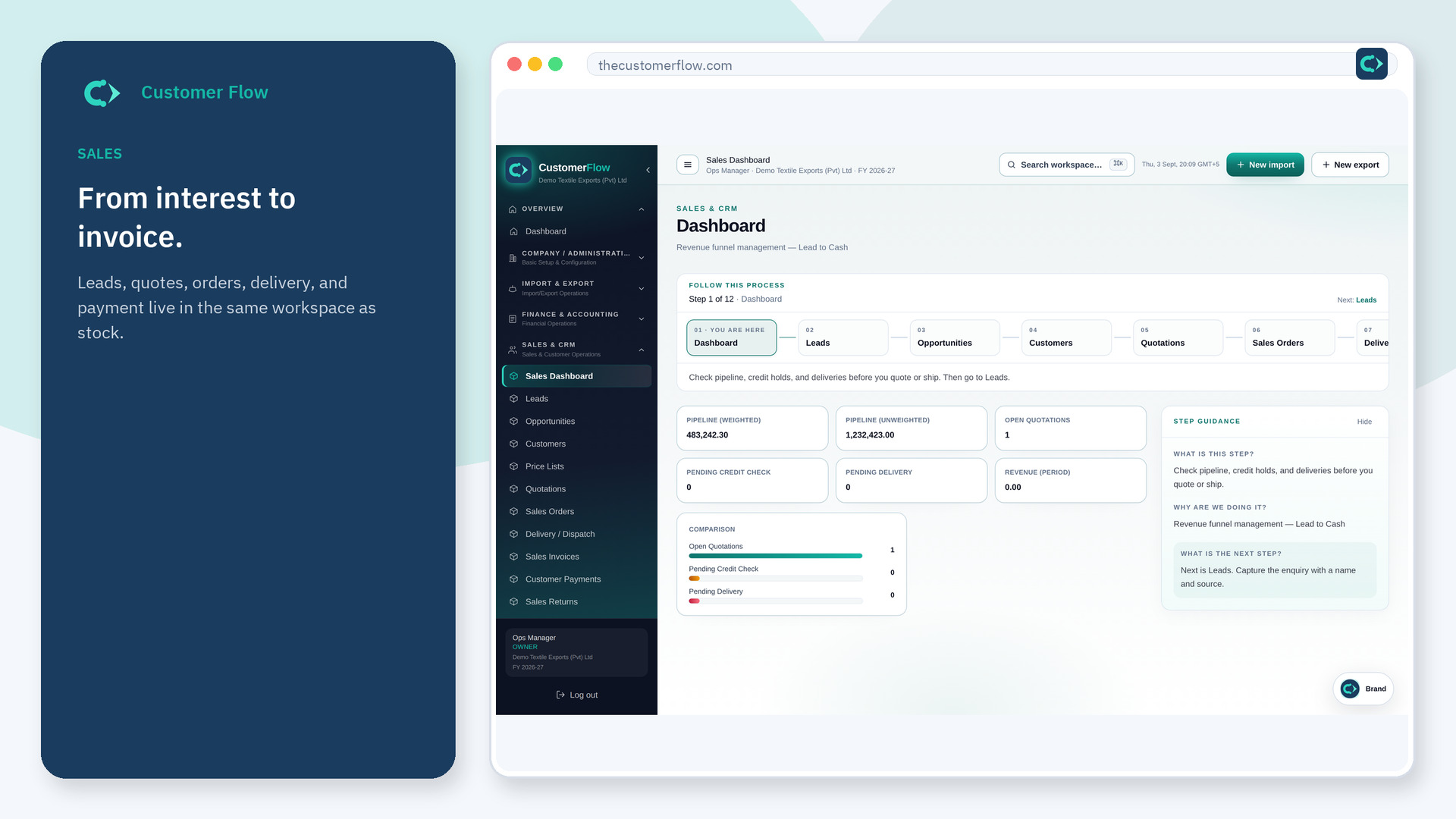
Where to find it: Left menu → Sales & CRM → Quotations
Step 1
Left menu → Sales & CRM → Quotations. If the name is missing, your role does not include it — ask an admin in Users & Roles.
Step 2
Add lines (or create from an opportunity), send the quote, and wait for acceptance. If the customer rejects but still wants to talk, use Revise & renegotiate — that keeps the rejected quote for history and opens a new draft. Then Create order from an accepted quote.
Step 3
An accepted quote shows Create order. A rejected quote shows Revise & renegotiate; the linked opportunity moves to negotiation.
Yes. Quotations is a signed-in workspace screen. This public page teaches the screen with a picture and a link to the feature video. It never shows another company’s data.
The left menu only shows screens your role may open. Ask a company admin to grant the matching permission, or to show you which role should own this step.
Do not reopen the rejected quote. Click Revise & renegotiate to clone a new draft, adjust price or terms, attach files if needed, then send again. The old rejection stays on the audit trail.