
Point of Sale
How to use Tills in Customer Flow
The registers you sell from, each tied to the warehouse its stock comes from and the profit centre that earns its sales.
Where to find it: Left menu → Point of Sale → Tills
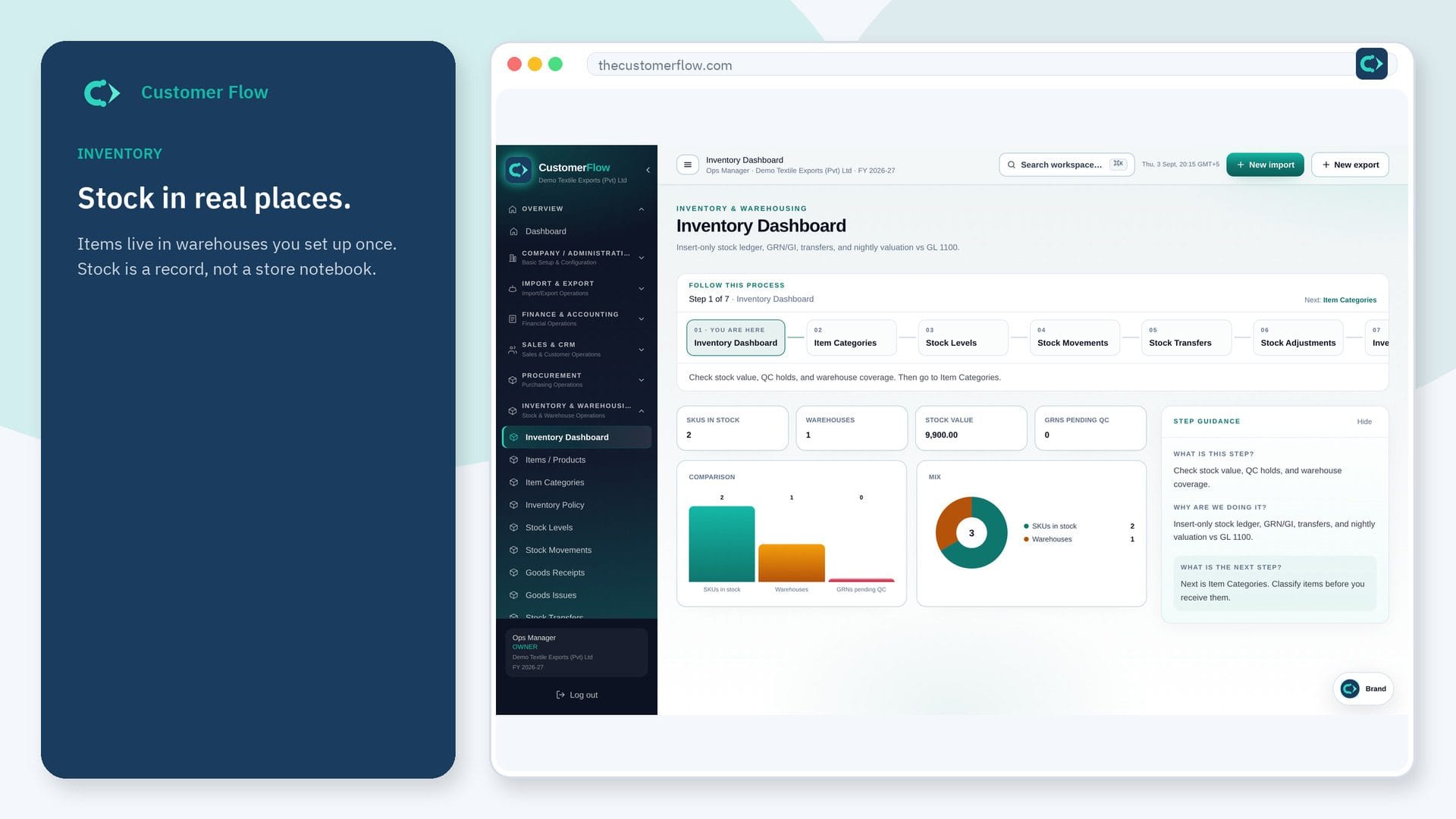
Every step
Step 1
Open the screen
Left menu → Point of Sale → Tills. If the name is missing, your role does not include it — ask an admin in Users & Roles.
Step 2
Do the work
Add a till with a short code, choose its warehouse and profit centre, and switch it off when it is not in use.
Step 3
Check it saved
Cashiers see active tills on the Counter. Receipts start with the till's code.
Questions people ask
Do I need to log in to use Tills?
Yes. Tills is a signed-in workspace screen. This public page teaches the screen with a picture and a link to the feature video. It never shows another company’s data.
I cannot see Tills in the menu. Why?
The left menu only shows screens your role may open. Ask a company admin to grant the matching permission, or to show you which role should own this step.
Can I move a till to another warehouse?
Yes, between shifts. Sales already made keep the warehouse they were sold from.