
Point of Sale
How to use Stock to Watch in Customer Flow
For each stock item sold at the tills, how many days the stock in the till's warehouse lasts at the rate it has been selling, with a suggested order to cover the next two weeks.
Where to find it: Left menu → Point of Sale → Stock to Watch
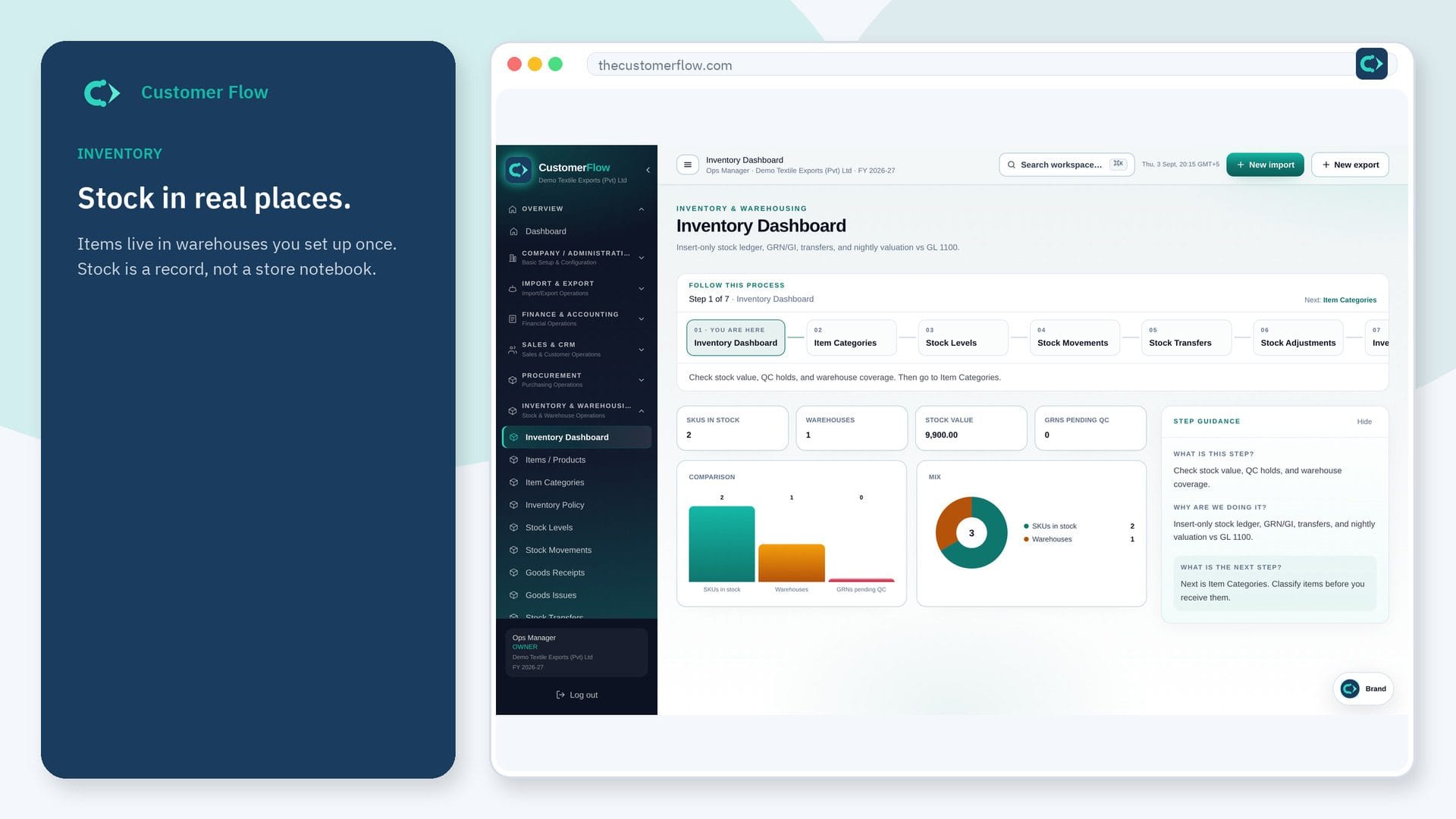
Every step
Step 1
Open the screen
Left menu → Point of Sale → Stock to Watch. If the name is missing, your role does not include it — ask an admin in Users & Roles.
Step 2
Do the work
Pick how far back to measure the selling rate (28 days by default) and a till, or all tills. Work down the list from Out of stock and Running low, and order the suggested quantities.
Step 3
Check it saved
Items at or below their reorder point are listed as Running low too, matching Inventory's low-stock alerts. Use the link to Inventory to raise a draft purchase requisition.
Questions people ask
Do I need to log in to use Stock to Watch?
Yes. Stock to Watch is a signed-in workspace screen. This public page teaches the screen with a picture and a link to the feature video. It never shows another company’s data.
I cannot see Stock to Watch in the menu. Why?
The left menu only shows screens your role may open. Ask a company admin to grant the matching permission, or to show you which role should own this step.
How is the selling rate worked out?
What the tills sold over the look-back, less what came back on refunds, divided by the number of days. Sales from other channels out of the same warehouse are not counted, so check Stock Levels when a warehouse also ships orders.