
Point of Sale
How to use Promotions in Customer Flow
Dated price cuts at the tills: a percent off or a promo price for one product or a whole item category, at every till or one, with what each promotion sold and gave away.
Where to find it: Left menu → Point of Sale → Promotions
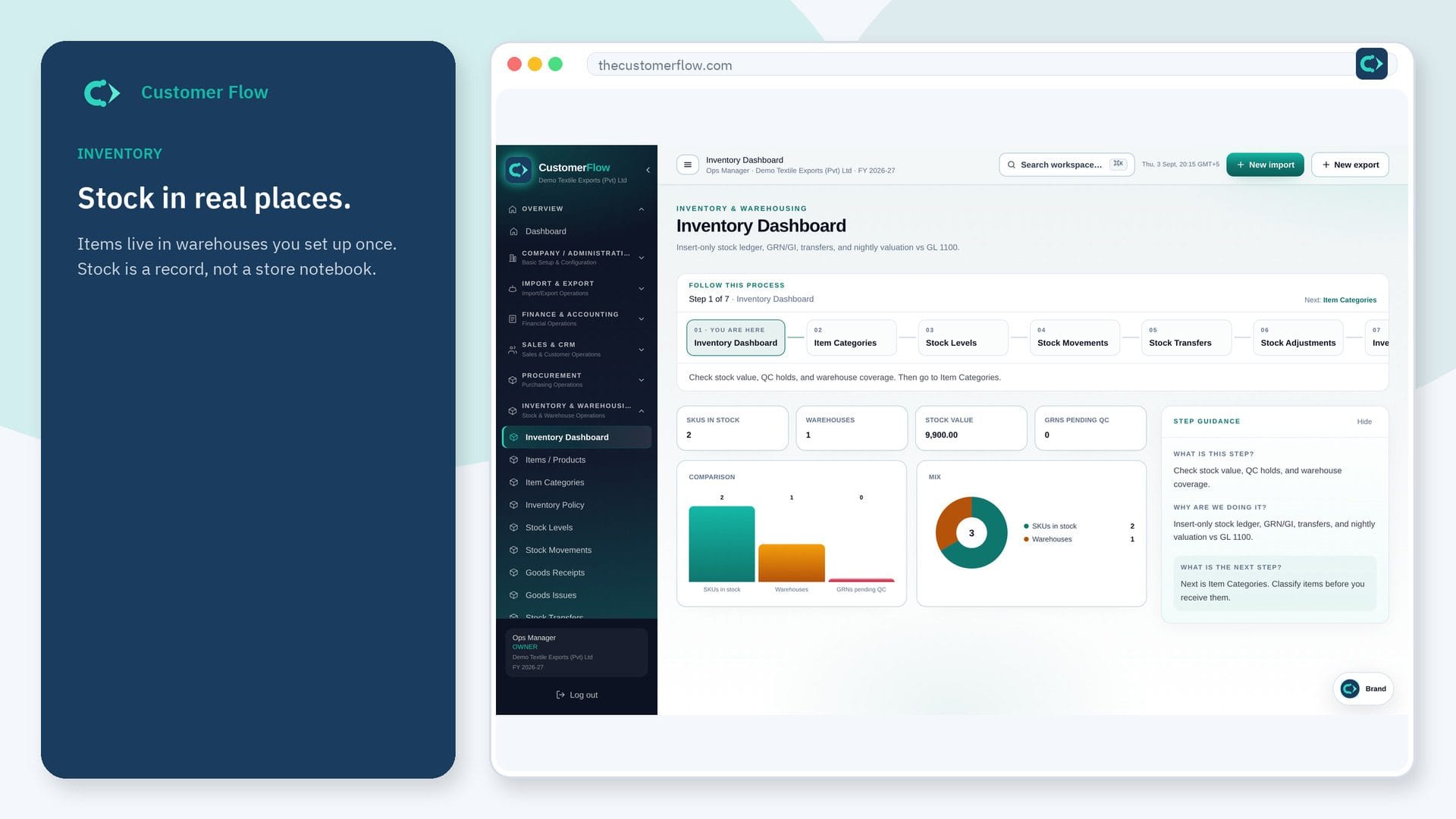
Every step
Step 1
Open the screen
Left menu → Point of Sale → Promotions. If the name is missing, your role does not include it — ask an admin in Users & Roles.
Step 2
Do the work
Name the promotion, choose the product or category, the discount, the first and last day, and a till (or all tills), then save. The counter shows the promo price and the saving on each line.
Step 3
Check it saved
Once a promotion has priced a sale only its name and end date can change; stop it and start a new one to change the price. Daily and period reports show the discount given.
Questions people ask
Do I need to log in to use Promotions?
Yes. Promotions is a signed-in workspace screen. This public page teaches the screen with a picture and a link to the feature video. It never shows another company’s data.
I cannot see Promotions in the menu. Why?
The left menu only shows screens your role may open. Ask a company admin to grant the matching permission, or to show you which role should own this step.
What if two promotions cover the same item?
The customer gets the lower price. A price the cashier types by hand is charged as typed and is not counted as a promotion.