Home
The home page after you sign in. It shows what needs you today: open files, setup that is still red, and shortcuts to start work.
Where to find it: Left menu → Overview → Dashboard
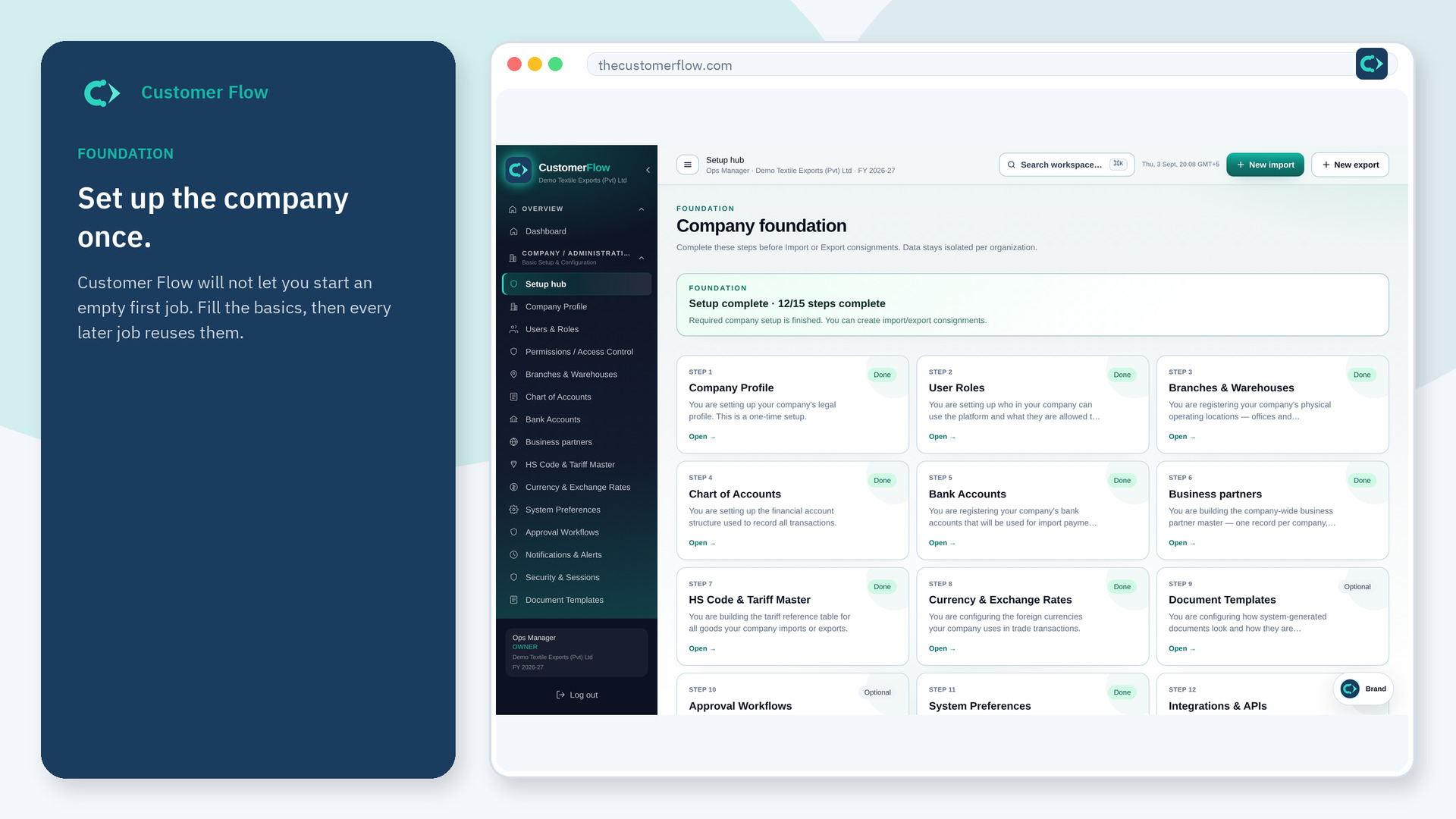
Step 1
Left menu → Overview → Dashboard. If the name is missing, your role does not include it — ask an admin in Users & Roles.
Step 2
Read the cards from top to bottom. Open the item that is blocking someone — an incomplete setup step, an import waiting for papers, or an approval in your queue.
Step 3
If you click a card, you land on that file or setup page. Use the browser back button or Dashboard in the menu to return.
Yes. Dashboard is a signed-in workspace screen. This public page teaches the screen with a picture and a link to the feature video. It never shows another company’s data.
The left menu only shows screens your role may open. Ask a company admin to grant the matching permission, or to show you which role should own this step.
Finish any red setup steps before you create a live import or export. Then open the oldest file that is waiting on you.