
Announcements
How to use Noticeboard in Customer Flow
Company notices meant for you: policies, closures, safety notes and news, newest and most urgent first.
Where to find it: Left menu → Announcements → Noticeboard
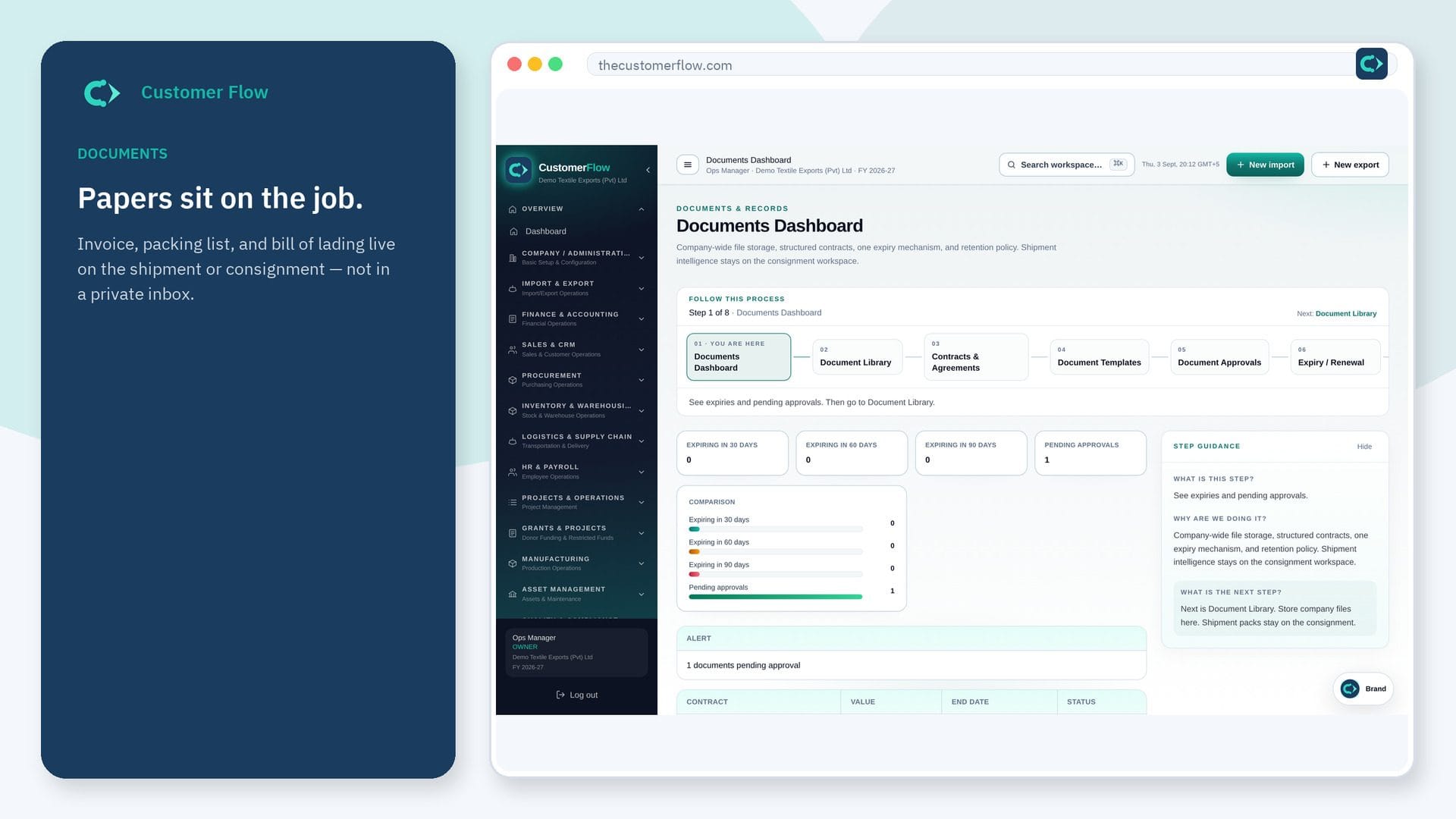
Every step
Step 1
Open the screen
Left menu → Announcements → Noticeboard. If the name is missing, your role does not include it — ask an admin in Users & Roles.
Step 2
Do the work
Open each new notice to read it. When a notice asks you to acknowledge it, press the button at the bottom once you have read it.
Step 3
Check it saved
Needs me should be empty once you have read and acknowledged everything. The notice shows the time you acknowledged it.
Questions people ask
Do I need to log in to use Noticeboard?
Yes. Noticeboard is a signed-in workspace screen. This public page teaches the screen with a picture and a link to the feature video. It never shows another company’s data.
I cannot see Noticeboard in the menu. Why?
The left menu only shows screens your role may open. Ask a company admin to grant the matching permission, or to show you which role should own this step.
Why do I not see a notice my colleague can see?
It was sent to one department. You see it only when your employee record is in that department.